This is not the article I originally intended to write.
Initially, I planned to start this little mini-series by exploring the software side of literature archival. To explore the different types of files and programs you might find yourself using in your attempts to develop an offline library of your own. Then, after that, I would discuss the actual hardware you might need in order to store that data.
The rationale for this was simple. Your choice of hardware would depend on what type of media you were attempting to store. It would, for example, take a much greater amount of storage space to save the entire collection of Contrapoints online videos than it would to save even a few million eBooks. I figured it would be best to start with the software then, to arm you with the knowledge needed to judge what hardware would suit your needs best, to decide where, and how, you would need to spend your money.
It wouldn’t even be all that complicated of a process, I thought. After all, I’ve spent the last decade collecting all manner of media from every inch of the internet. I have nearly 20 GBs of ebooks stored on my eReader, and many more backed up on a hard drive. Surely, with all my years of experience, it would be child’s play to simply share my knowledge and techniques, confident it would allow you to access the internet in the same way I’ve learned to do.
Then, AI.
Fucking AI.
The thing is, the majority of my tools for downloading content on the internet that does not explicitly have a means of being accessed uses a technique called scraping. Scraping, within a computer context, is basically an automated process where a program downloads all the content of a webpage and saves it locally. It’s a very, very common tool, and used for entirely innocuous purposes—it is the basis of every search engine in existence—but it’s come into focus recently as a means to provide the endless stream of data AI needs in order to grow. As a result of this increased focus, as well as the general shift towards a more hostile, combative internet, many websites have enacted tougher tools meant to discourage or prevent web-scraping.
I understand this decision. I even applaud it. At the end of the day, there is a real need to protect the works of creators from the all consuming maw of AI.
However, it also breaks 95% of the tools I was going to teach you.
Some of the losses this has caused are so great I have yet to discover alternatives, and in some cases, I find myself reluctant to share them, out of concern that making them widely known may result in their deletion. As a result, for now, all I can recommend is to download media whenever the creator themselves makes it possible—buy their books off itch.io, subscribe to their Patreon, or even just, ask them directly.
You would be astounded how often that works.
In the meantime, as I continue to investigate new options, I figured it would be best to share what information I have that hasn’t changed—the hardware necessary to actually undergo this process of media archival.
So let’s push aside the pain of the last year, and look forward to the future.
… seriously though, fucking AI.
What is Hardware?
Hardware is, at its core, the physical manifestation of technology. Data may be an ethereal, constantly shifting thing, real and yet not, but hardware is very much real. It exists in your hands, it takes resources to create, it is yours, in a way software is often not.
It is also, for many, very poorly understood.
In this article, I’ll be focusing on hardware in the form of offline storage mediums. That is, different pieces of technology you can use to store data that does not require an internet connection, power, or an active connection to your computer. I will be discussing some of the most common forms of storage we currently have, their strengths and weaknesses, and when and why you would want to use them. I will be limiting the scope of this article to storage mediums an average “consumer” of electronics would be able to access. While those familiar with data archival will point out the limits of any and all of the technology I discuss, and argue for alternative methods (such as magnetic tape), those are simply not viable for the vast majority of people reading this article.
I will also note that, by and large, I will not be discussing hardware beyond the realm of storage. This is due to the fact that it’s largely irrelevant. It doesn’t matter whether you use Windows or Mac, Ubuntu or Mint. The processes I’ll be discussing are largely identical.
However, there is an exception.
You are going to need a computer
You are going to need a computer.
Yes I repeated myself. This is important.
Statistically speaking, the most common way people around the world access the internet is with a mobile device. In America, that means an iPhone, in the rest of the world, that means Android, predominantly, but either way, these small, portable little machines and their equally portable little operating systems have largely displaced traditional desktops and laptops, at least for time spent.
Now, to be clear, I am not here to spout some “the phones are killing our youth!” nonsense. I own an android phone. I use it to play Honkai: Star Rail. I very much am in a glass house.
However, to be very, very clear, they won’t work for this.
Phones are increasingly capable devices, devices which, honestly, can largely match an older desktop machine, despite lacking active cooling, size, or power. However, they are designed as locked down systems. Even when compared to MacOS, mobile operating systems give you very little access to the internal workings of the phones file system. They obfuscate file types, they download files to locked off folders hidden behind apps. They have, at most, a single USB type C port.
They will not work for our purposes. You must own a computer.
You will not likely be able to use a library computer for this. You must own the computer yourself. It does not have to be an expensive one. It does not have to be a desktop. A $500 laptop you bought at Costco will serve your needs just fine. But you will need one.
It is also, generally speaking, good practice to have a computer that you can rip the guts out of if needed.
Now, back to our regularly scheduled material.
Data Storage & Best Practices
Data storage is one of the classic problems in the land of computers. It has attracted considerable investment, an incredible amount of time and effort, and the attention of many of the great thinkers of our time. It is, in some respects, the problem of the digital age.
Data, after all, does not exist.
How do we make it stay?
By this point, we have multiple answers to this question. In some respects, it is a solved problem, with the main focus instead shifting to a never ending race to have the best, the fastest storage imaginable. But we have not done this by creating one, perfect type of data storage. No, because we’re stubborn and weird, we decided to make a dozen different options, all of which have different pros and cons.
So, let’s explore these different technologies. But first, a quick note on best practices while doing archival work, if feasible. These rules will apply to all forms of hardware we discuss, although their viability will vary.
As a general rule, if you’ve researched or are familiar with how to back-up your computer, then you largely know these rules already. There are differences—this is archival, not backing up, so you don’t necessarily need more recent copies of the same data (unless of course a story updates), but the general rules around ensuring your backups don’t disappear still apply.
This rule, or at least the one well discuss here, is the 3-2-1 rule. That phrase is a bit of a mnemonic, and it means:
3 copies of any data
2 offline backups
1 stored offsite.
What does this mean?
Well, the first is obvious. You want at least three copies of any piece of data you wish to preserve. One copy is the one you’re actually using—that is, for example, an ebook saved to your phone or your ereader, on a “live” device. Then, two more copies stored on an “offline” medium—we’ll discuss what that means shortly—and then, finally, you want one of those two copies stored “offsite”, or at a different location than the other two copies.
The rational for this rule should be clear, I imagine. Three copies means three redundancies, largely preventing the chance a single event could destroy the data. Having a copy offsite means that even if something happens to, for example, your home, there will still be a backup somewhere, kept safe and secure.
You may wish to keep more backups, or you may be unable to keep three—both of which are reasonable—but this rule is generally good advice, and following it will provide a great deal of safety for your data. If you’re uncertain what, exactly, your archival procedures should look like, then it’s a good starting point.
Now.
Hardware: a Menagerie of Options

Your Device

The first, and most widely available tool you have for archival work is… well, whatever device it is you’re using to read this.
Your phone. Your gaming PC. Your laptop. Your iPad. Your Chromebook. Whatever it may be, it likely seems like the most obvious choice to archive whatever trans media it is you want to save.
You may already have a great deal of media stored on it. As mentioned, I have mountains of trans literature saved to my computer. It’s all there, and I can access it whenever I want, even if the internet is down, or even if the original copy has been deleted.
And even if you don’t, well, you still already have it. It’s not something you need to rush out and buy, unlike many of the alternatives I’ll discuss. You may have splurged on greater storage capacity for exactly this reason. What’s wrong with using it to store data?
Several things.
To be fair, storing data on your device is not, in itself, a terrible idea. It’s necessary, even, because there’s little point to anything we’re discussing if you can’t actually access the trans media you’re saving. But for long term storage, for keeping the data safe, there’s several key issues.
Computers, phones, and all other devices store data using dedicated hardware—in PC’s like Windows or a Mac, that’s typically in the form of an SSD, or a hard drive, two forms of data storage I’ll be discussing later on. Some use flash memory instead, something which, as I’ll also discuss, is similar to an SSD. These, in themselves, are excellent technologies, but the problem with using them as long term storage—within this context—is that they are constantly being used.
Every time you boot your computer, or turn on your phone, and especially whenever you download something off the internet, the storage in your system is being used. It’s being turned on, data is being recorded or read, and then it remains on. This significantly increases the risk of data corruption, a situation where, basically, something goes wrong and the data recorded on the disk is misrecorded, somehow, and unable to be read. Data corruption is common, and although modern operating systems are much better at managing and preventing it from happening, it is still an omnipresent threat. It is one of the core reasons you should create backups in the first place, as corrupted data is often difficult or impossible to repair.
This is especially true if you are not a computer expert.
Data corruption also becomes exponentially more likely as storage ages. As I’ll discuss later, in more depth, all storage media has a shelf-life, a period of time where it will eventually stop working. These shelf-life’s, however, are really an estimate based on use, as it is use that kills drives. The more data you read—and, critically, that you write to the drive, the faster it degrades. And a drive that is in use, a drive that is in your computer, that is constantly saving and downloading updates for your OS or programs, is in near constant use.
And these are just the common problems. They are likely the only problems you’ll face, as a typical user, but they are far from the most devastating. Malicious acts can also result in a loss of all data on your systems. Given the political climate, you’ll almost certainly imagine government forces breaking into your homes, or FBI agents snooping about your internet profile, as they do with all “dissident transgenders”, but it needn’t be a form of targeted discrimination. Any Internet connected device—and let’s be honest, all devices are internet connected now—is vulnerable to viruses, malware. Ransomware is a particularly dangerous threat, for our purposes, as it locks the user out of their computer unless a ransom is paid (and even then, the ransom is not always enough). Many Ransomware attempts can be defeated by wiping all data from your computer, but.
Well.
They can be defeated by wiping all data from your computer.
This is not meant to discourage you from downloading your books and shows to your devices. By all means, you should. You must, in fact, for all other methods require you to do so. And for all the problems I’ve highlighted, it’s still true that saving a copy to your laptop, your phone, or your eReader is still better than relying solely on the internet.
Which, of course, brings us to the second option, and arguably the worst of all.

Cloud Services

Raise a hand if you haven’t used a cloud storage service.
I doubt there’s many.
Cloud storage has become an almost ubiquitous element of our online lifestyle. Many of us use Google drive to store photos, uploading them automatically from our phone. Others use OneDrive to automatically back up their computer (and if they don’t, Microsoft would really, really like to change that), and any Apple user would doubtless have countless tales of how iCloud saved their life, or ensured their beloved family photos were saved forever. Hell, a great many pieces of trans fiction have been written in Google Docs, synced automatically with their servers.
I am not going to decry cloud storage all together. It is unquestionably useful, and while there are many, many flaws with it—especially with the rise of AI—it is one of those elements of technology we likely cannot escape from, no matter how much some of us may wish to try.
So then, why not use it to store your trans literature?
… don’t.
There are many, many arguments as to why you should not use cloud storage to store LGBTQ+, ranging from legal to privacy to AI. I will not relitigate those arguments here, because the most important argument for our purposes is much simpler.
(Beth’s note: if you want a better understanding of why Cloud Storage is a bad idea, it’s covered in the original TLPP article)
It isn’t archival. It isn’t even a backup.
Not in many important ways, at least. Using cloud services for data storage means handing over control of your data to someone else. It means necessitating an internet connection to access your data. It means taking someone else’s word your data is safe, and that simply isn’t enough.
I don’t use cloud storage as a backup. I use it to facilitate access, yes, to allow me to edit a document on my phone and see those edits mirrored on my laptop, but it is not a true backup.
Again, it is likely better than nothing.
But honestly, that is arguable.
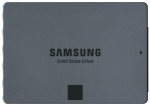
Hard Drives and SSDs
And now, we come to the first recommendation.
I’ve already mentioned hard drives and SSDs when discussing your own device. That’s because, as far as data storage goes, they are ubiquitous. They are, in many respects, the default option, the ideal, the standard by which all other choices are compared against. There is little they are ill-suited for, and a great many things for which they are the only viable option.
They are also, as some of you may be thinking, confusing.
So let’s discuss.
An SSD or a hard drive are, basically, means of storing data offline—that is, without electricity. They are used similarly, but the technology is very, very different.
A hard drive is likely what you’re familiar with. You’ve likely used the term when discussing your computer storage, or trying to figure out where the blasted file saved to. Hard-drives work a great deal like a vinyl record, if the record was made of metal, magnetic, and spun at approximately 1000x times speed, and the needle read the lines via magnetism.
So maybe not much like a vinyl record at all.
Hard drives were one of the first mass storage technologies to really catch on. They displaced all early alternatives, and wowed the world with their blistering speeds (up to 100 megs!). Eventually, however, it became clear they were limited.
Hard drives, as you may have guessed, are mechanical objects. They have a motor, they have moving parts. They can only read data as fast as those parts can move, and we’ve more or less reached the realistic limit on speeds, at least without tearing the entire unit apart. This reliance on mechanical parts also creates durability problems. Hard drives are very, very fragile, and if damaged, there’s very little that can be done to repair them. There’s also little that can be done to repair them once the motor or disk start to wear out—and as this happens, the chances of data corruption start to increase.
So, we gradually switched over to SSDs. An SSD, or a Solid State Drive, are entirely electronic components, unlike a hard drive. They have no moving parts, no disk, nothing—just memory chips fashioned out of silicone. This allows them to be much, much faster than hard drives, as their speeds are no longer limited by the physical rotation of a disk, and also more durable, as there are no moving parts to wear down or be broken. They are also more power efficient, smaller, lighter, and, obviously, more expensive.
Although not to the degree they once were.
So, what does all this mean for trans libraries?
Perhaps the best way to start is by saying this: In most cases, an external hard drive or an SSD should be your first choice for data archival. They’re the most flexible, most accessible, most capable of handling a wide array of content, and, in some cases, the only appropriate option. We will discuss exceptions as I move through other technologies, but with this in mind, there are three general questions you should ask as you consider what technology to use (or what to invest in):
- How much storage do I need?
- How fast do I need it to be?
- Should I use a hard drive or an SSD?
Yes, deciding which is the last question. This is partly because they largely work the same, at least for the end user, but also because the answer to the previous two questions will help decide the third.
So, going point by point:
#1 – How much storage do I need?
Deciding how much storage you need is a question of three elements. What are you trying to store, how much of it, and how much you can afford. What you are trying to store is fairly simple—different files have different storage requirements. This is generally fairly intuitive—text documents like book tend to take very little space, and you could fit a vast quantity of texts onto a small storage drive, whereas high resolution video, complete with audio, takes up a great deal more space.
You can generally look at it with something of a line:
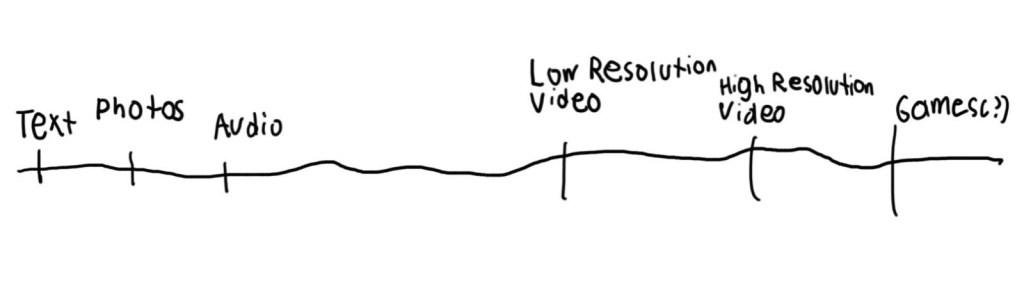
This line, although very, very much an oversimplification, generally represents the amount of storage needed to store different types of media, with lower storage media on the left, and higher storage on the right. Videos have a large gap from the other content, because there is a larger gap, and also because text, photos, and audio have more effective and widespread compression mechanisms than video.
(What is compression? Math. Basically)
It’s not an exhaustive line, nor is it always accurate. And it’s important to note length and quantity matters too. Several days worth of audio is going to take up a mammoth amount of space, much more than a few hours worth of video. This is the how much of it rule. Still, the rule generally holds, and can give you a good idea of how to determine your space requirements.
I can’t tell you exactly how much storage you’ll need. No one but yourself can. I will say, however, that many people have a tendency to either underestimate or overestimate their storage needs. If you feel like you must get as much storage as you can afford (or more than), or you feel you might as well cheap out, because there’s no way you’ll use all that space—think again.
#2 – How fast does my drive need to be?
Now, speed.
What I mean by speed is the rate at which your computer, or phone, or whatever device you have your external hard drive or SSD connected to can read the data stored on the device. For hard drives, this is generally not a concern, as the nature of hard drives means they’re too slow for this question to matter much, but with SSDs, this is a question less of the drive itself, and more the way it connects to your system. All modern external hard drives and SSDs use some type of USB connection. Typically, they have a detachable cable, which you can plug into either a square USB-A connector or a ovalish USB-C connector. Many of these connectors look the same. Indeed, many recently produced external drives will use a standard USB-C port. So what, exactly, is the deciding factor.
Well. May I introduce you to the absolute fuckery that is USB standards.
What’s a USB standard, Nobleheroine?
The seventh circle of hell, that’s what.
Here’s a chart.
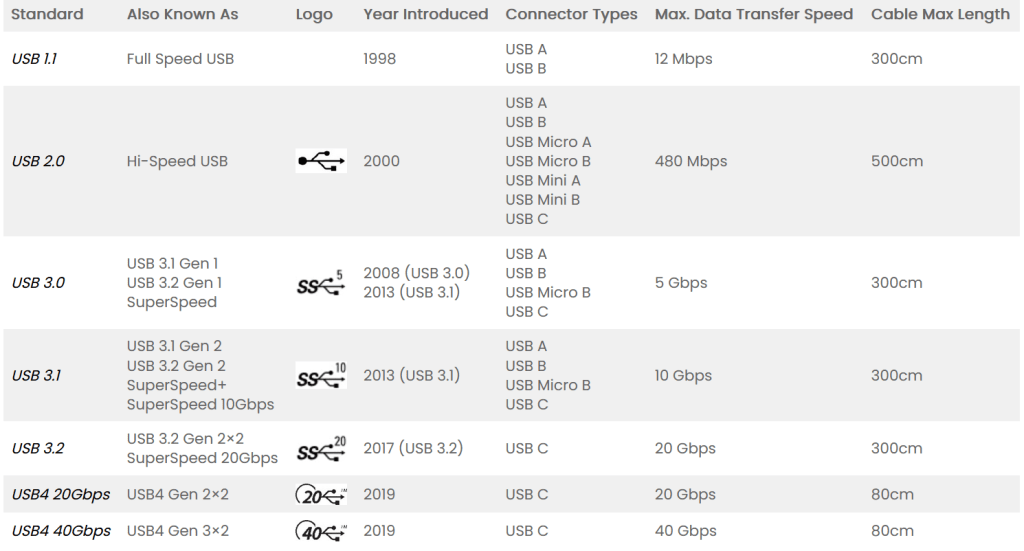
Source: https://www.bytecable.com/usb-speed-comparison/
That’s a nice chart, isn’t it. Makes perfect sense. It makes perfect sense that every single item on that list has multiple names, right? It makes perfect sense that there’s fucking three different types of USB 3, right?? Oh, and of course, the slowest USB speed is called Full Speed USB, because what else would it be called???
NobleHeroine, I’m scared.
Good. You should be.
Jokes aside, the charts confusing because most of those entries have been renamed multiple times, for… reasons. Really, the best way to think about it is to just focus on that max data transfer speed. That’s the only part that’s really reliable.
But NobleHeroine, there’s two entries there with the same speed—
Because USB hates you, that’s the explanation.
Sigh.
Okay, going through an entire explanation of USB standards is honestly an article in its own, and to be blunt, it largely doesn’t matter. If you’re not moving large files, like videos or games, and you’re not regularly copying data over, the speed doesn’t really matter—as long as it hits that 5Gpbs line.
That’s the minimum. Faster is nice, but slower runs the risk of the file transfer stalling and failing to finish, resulting in corrupted files.
So, basically, when buying an SSD (or a hard drive), you want to make sure it is compatible with at least USB 3.0, or USB 3.1 Gen 1, or USB 3.2 Gen 1, or SuperSpeed USB yes I know.
However, that’s not the end of the story. You also need to make sure the port you’re connecting the device to and the cable you’re using also meet that same spec, or higher. For example, in order to get full USB4 40gpbs speed, you’d need an SSD that supports USB4, a cable that supports USB4, and a port on your system that supports USB4. If any one of those parts don’t support that standard—for example, if the cable only supports USB 2.0 speeds—then it will only run at the lowest speed within the chain. If you’re using the cable that came with the storage device, this generally isn’t a problem, but if you’re, for example, using your phones charging cable, then it likely does not support anything faster than USB 2.0.
Yes, even if that cable supports 240 watts of charging, because that’s a different spec.
But NobleHeroine, what about Thunderbolt?
Ah, yes. Thunderbolt.
Thunderbolt is an interesting beast. If you’ve used an Intel laptop in the last few years, and you probably have, you may have noticed a USB-C port with a little lightning symbol beside it.
This generally means that port is a Thunderbolt port, of some kind. Thunderbolt is a proprietary connection type developed by Intel. It’s based on—and compatible with—standard USB, but it has much higher data bandwidth, power delivery, display capabilities, and, most crucially, exposes PCIe lanes, allowing not only the ability to connect the laptop to things like graphics cards, but also far, far faster storage than standard USB can allow, up to 40 gpbs.
If that number seems familiar to you, that’s because USB4 is based on the Thunderbolt protocol, because Intel released Thunderbolt 3 to the world. USB4 does everything Thunderbolt does, but cheaper.
Technology is wild.
Does any of this actually matter for our purposes? Not really. Dedicated Thunderbolt drives (or USB4 drives, for that matter) are very rare, largely because they require external power to actually make use of those speeds. Generally, this tech is used to allow you to connect multiple drives via a single port and have them all run at 5 or 10 gpbs instead. The most important part is to know that Thunderbolt is compatible with USB, and will generally work fine.
#3 – Should I get a hard drive or an SSD?
Deciding between an SSD or a hard drive is a bit complicated, because it depends on your budget, what you value, and your use case. Much of the main points of consideration are things I’ve discussed already—SSDs are faster, more durable, and more practical than hard drives, but hard drives are cheaper.
The complexity to this is in capacity, and how pricing works there.
Hard drives and SSDs are both sold in capacities up to 8TBs, but hard drives can go up much further, into even triple digits, at the highest end, whereas 8TBs is largely the hard limit for an SSD, and represents an extremely expensive investment. Hard drives can go higher here because they’re an older, more established technology, and we have the know how and the economics of scale to make really, really big hard drives. SSDs, on the other hand, are still newer, and still more expensive per gigabyte, so making something larger than 8Tbs is cost-prohibitive. In this regard, if you really, really, really need a lot of storage, you should go for a hard drive.
However, the truth is, you probably won’t need a lot of storage. You’re storing books, or photos, or even audio files, and those just… don’t take up that much space. And the thing is, within a certain storage range (between about 256 GB and 2 TBS), there isn’t a huge price difference between SSDs and hard drives, especially not in the budget space. The demand for low capacity hard drives just isn’t there, while that space in SSDs is highly competitive.
(Side note, as buying advice, whether or getting an SSD or a hard drive, I would recommend getting a 1 Tb model, or a 2 Tb model. Prices increase slowly as you go up from 256gb up to a terabyte, with sometimes the only difference in price being like, 20 dollars between a 512 GB ssd and a 1 Tb ssd. By contrast, everything past 1 Tb tends to see a doubling of cost for double the storage. So it’s generally not worth it to go below a terabyte)
However, there is one other factor in deciding between a hard drive and an SSD, and that’s longevity. How long will an SSD last? How long will a hard drive?
This is an easier question to answer for hard drives. The typical answer is around five years, but that’s highly variable. In theory, a hard drive may last forever—but that is only theoretical, and will never be borne out in reality. Extensive use will wear it down faster, as will hard trauma. Magnets can erase the data on it and ruin the drive, and they can simply fail for no given reason, just a problem with manufacturing. Typically, however, when hard drives fail, they do so noisily, and with quite a far bit of warning.
SSDs, however, are… more complicated. Some of this is simply because we haven’t been using SSDs for all that long. We don’t have a lot of data on how they last. The oldest SSD in my computer is barely two years old, after all. We know they degrade from use—Terabytes written, and all—and we know they lack mechanical parts, and so they can withstand more physical damage than a hard drive. However, this doesn’t mean that you can write to an SSD once, and then it’ll last forever. There are limits.
For starters, it’s worth knowing that part of how SSDs store data in the first place is in the form of a potential electrical charge. One of the limits of that stored charge is that, even absent of use, it will gradually leak out. This is why some people suggest you must plug in your SSD at least once per year, in order to give it a new electrical charge, or else you will begin to lose data. This won’t completely stop the leakage, however, and may cause some of the same damage we’d expect to see from frequent writes.
So, estimating how long data will last on a hard drive or an SSD is not easy. Generally, people say that a hard drive will last about five years, and an SSD ten. But quality matters a lot here, as does use, as does storage.
Ten years is a long time, and for personal backups, for ensuring that the Trumpification of the internet does not result in the loss of trans culture, it’s likely sufficient. But it is not enough to ensure the data will last forever, to ensure that the next generation will have access to the same stories, the same knowledge as you do. This is why data archival is such an important area of research, why so much effort is being put into finding newer, better ways of storing our ideas, our thoughts, our knowledge.
But, that goes beyond the scope of this article.
And beyond the scope of hard drives and SSDs. It’s much quicker from here.
Flash Drives and SD Cards
Okay, the reality is, hard drives are expensive. SSDs are expensive. They’re big, they’re bulky. They need cables and connections and space and ughhhhhhh.
But look. Look. I can buy a flash drive from Shoppers for like, 20 bucks. It’s got 128 GB of storage. It’s got USB 3.2 Gen 1 Excelsion or whatever. Oh, and there’s this SD card too! 1 Tb of storage—wouldn’t that work?
Well, dear reader, the answer is simple.
Yes. But you shouldn’t.
Flash drives and SD cards are based on the same technology as SSDs, so they share many of the same strengths and weaknesses. The main difference, and it’s a rather important one, is quality.
SSDs are built to a high production standard. They are designed to survive years of use, to withstand intense trauma, to transfer data at high speed and laugh off the resulting heat. They are well engineered tools of labour and production.
A flash drive is a stocking stuffer. It’s made from bargain bin silicon, cheap plastic, and a crappy chip. SD cards, even expensive ones, are really no different.
They can work well. In fact, they’re decent options if you’re budget limited, or want something you can carry with you. But they’re far more likely to fail, and with far less warning than a properly made SSD. If you have nothing else, they’re not a bad option, but there’s always something better.
Platinum Chip
What in the goddamn–?
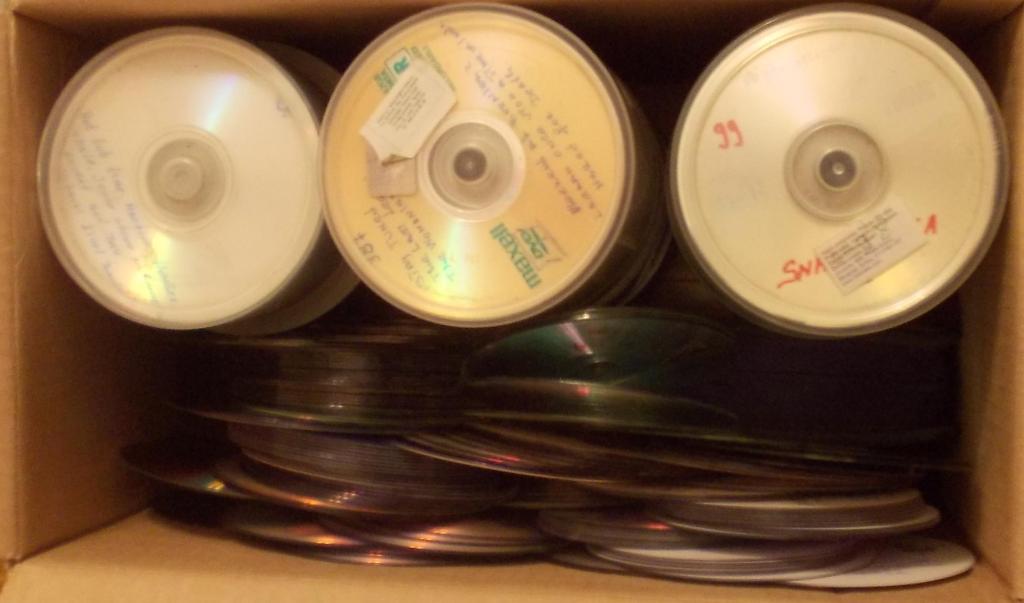
DVDs, CDs, and Blu-ray
Ah yes, the old classic.
Raise your hand if you actually have a DVD burner. If you have a Blu-ray burner, raise a glass of wine. You can probably afford it.
DVDs, and to a lesser extent CDs were a classic means of storing data, back at the turn of the millennium. They were cheap, efficient, and you could make a million of the things. Why did we ever stop?
Well. Take a look at the device your using to read this. Then look at your computer. Do you even have a way to read a DVD?
There’s a discussion to be had on what we lost with a transition away from physical media, but the reality is, it happened, and we can’t change that. DVDs, CDs, and Blu-ray are obviously not going to be your first choice for data archival, but they do have some uses, so we’ll discuss them.
DVDs, CDs, and Blu-ray all use the same basic tech—a laser burns grooves into a bit of metal or plastic, and that’s later read by another laser. The main difference between each is the frequency of the laser, resulting in increased storage capacities—CDs max out at maybe 500mbs, DVDs at about 4.7 GBs, and Blu-ray at several hundred GBs. This obviously makes Blu-ray a much more viable competitor with a hard drive than DVDs and CDs, but given how rare and how expensive Blu-ray burners and recordable disks are (although they do exist), I won’t spend much time discussing them. Most of the same principles apply anyways.
So, okay, why would you actually want to use a disk, likely DVD, as a backup?
There’s two reasons—reproducibility, and transport.
Unlike all other forms of data archival, it’s easy for an amateur to produce dozens, even hundreds of identical backups across different disks. You can buy a pack of twenty DVDs, burn your books to each, and then store those DVDs in twenty different places, ensuring you’ll almost never lose them. It also makes it easy to make monthly backups, with a pack of twelve giving you a full year of separate, physical copies.
The size, cheapness, and weight of DVDs also make them easy to transport. You can still mail a DVD for relatively little money—they’re small enough they often don’t qualify as a parcel, meaning you use the cheaper letter mail rates, and they don’t have a battery or any sensitive electronics. You could easily make a dozen copies of your trans library, send them to your friends, and give them all a copy, for relatively low costs.
And sometimes, that’s piracy.
Legally, I have to tell you not to do that.
Morally, please don’t rob trans creators of income. They’re probably not making enough.
Still, mailing a backup to a friend is a good idea. Both for normal reasons (if your friend lives in Utah, they probably aren’t going to see the same flooding you might get in, say, Florida), and because, unless things get wildly worse, no one can peep on what you put in your mail, unlike your online traffic.
(Beth’s note: Don’t do this after they’ve rediscovered the power of the Comstock act wooo)
This does require your friend to have a DVD drive (and not one that just plays movies—those won’t work), but that’s not beyond reason.
Now, if this has inspired you to go out and look for DVDs to store data on, you may have quickly realised a problem.
There are a lot of options out there. What’s a DVD – R? A DVD + R? DVD-RW????
Basically, there are two types of disks availible that you can record to, for all three types. There are R disks, which can be recorded to once, and never again, and RW disks, which can recorded to multiple times, over and over again.
… well, I say this applies to all of them, but really, you can only get RW disks as DVDs. There aren’t a lot of CDs with this tech, and I’ve never seen a Blu-ray.
Either way, both can work fine for our purposes, but DVD+-RW are generally higher quality than pure R disks, and have other advantages, so I’d recommend buying those, if buying DVDs. Beyond that, get whatever works.
The other element is the – and the +. Basically, this refers to a difference in how the laser actually works with the disk, and is largely not something you need to worry about. + disks are better, both for speed, and for reasons we’ll get into later, but both work fine.
But NobleHeroine, what about disk rot?
Right.
The thing is, there is one limit to DVDs, CDs, and even Blu-ray. Because of how they are designed, they are all vulnerable to a something known as disk rot, where the actual layer of the disk that stores information starts to corrode. You can reduce the chances of this occurring with good storage practices, but it’s not something you can prevent. It will happen sooner or later.
Of course, how vulnerable a disk is to disk rot depends on how the disk is made, what metallic layer is used, and their production style. This is an immensely complicated discussion, and honestly is beyond my skill level, but this chart from the government of Canada provides a decent summary.
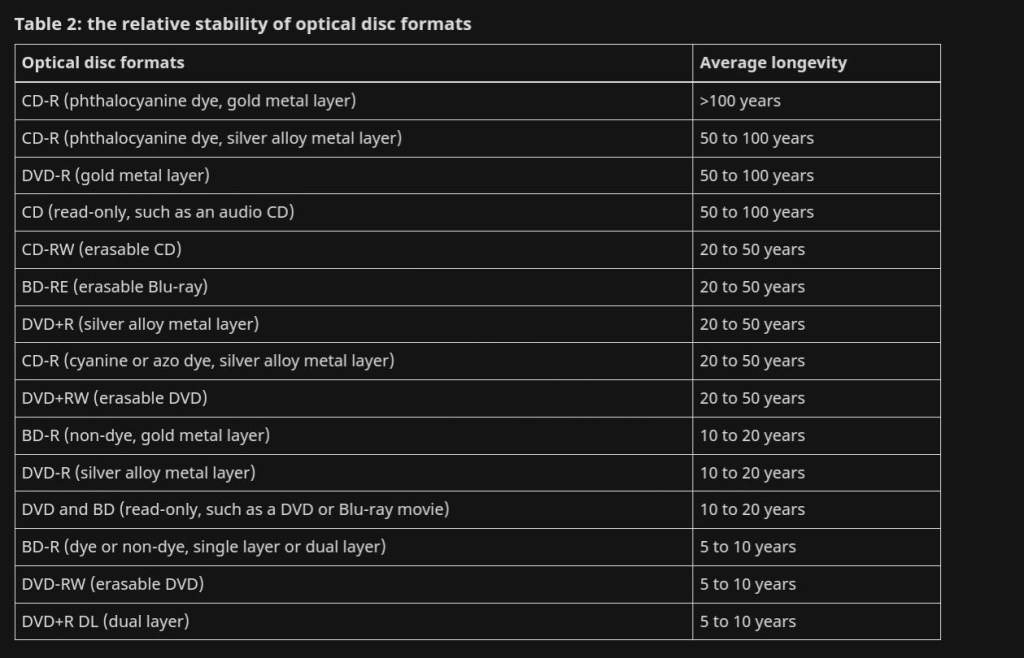
Honestly, I recommend checking out that website, they do a much better job explaining than I could.
However, there is one more wrinkle in this discussion about disks. See, there’s a special type of disk, known as M-Disk, that is designed specifically for data preservation. They’re typically based on Blu-ray technology, and therefore share the same data capacity, but there are also DVD M-disks. As far as I can understand, M-disks primarily seem to work by just, being the types of disks that last the longest, as seen on the chart. For example, DVDs with a gold metal layer, or a BD-RE. They’re excellent options, especially if you want true long-term storage, but make sure whatever drive you’re using to burn disks with has M-Disk support. It is not necessarily the same as simply being a regular DVD or Blu-ray burner.
Conclusion
Yeah. That’s it. Those are the technologies we have.
Well, the practical ones. There are, of course, still a few floppy disks floating around, some proprietary memory types, and a few techniques used in serious archival projects, but most of those are either I’ll-suited, ridiculous, or simply out of reach.
(Seriously, if you’re still using floppy disks in 2025, I’m going to assume you’re either a collector or have the keys to nuclear weapons)
Now, I’ve made a lot of points here, and a lot of suggestions, but I want to make something clear here—anything works. Any of the items on this list are better than not having backups. Even if all you can do is download epubs to your phone, that’s still something.
I’ve said this before, but I’ll say it again. Don’t let perfect be the enemy of good. Don’t wait until you can afford the perfect 2 TB SSD before you start downloading your favorite books. Don’t think you have to wait until you have enough money to buy a hundred M-Disk Blu-rays or it’s not even worth trying. Everything, anything you do is worth it, helps.
What I’ve said here today is meant to help guide you, is meant to help you decide what to buy, what to prioritize, and how. But do not take it as gospel. Do not take it as the only path to doing this work.
We don’t need three people doing this perfectly. We need everyone doing what they can.
Update Given Recent Political Shifts
First.
AAAAAAAAAAAAAAAAAAAAAAAAAAAAAAAAAAAAAAAAAAAAAAAAAAAAAAAAAAAAAAAAAAAAAAAAAAAAAAAAAAAAAAAAAAAAAAAAAAAAAAAAAAAAAAAAAAAAAAAAAAAAAAAAAAAAAAAAAAAAAAAAAAAAAAAAAAAAAAAAAAAAAAAA
Okay.
This article is coming out later than intended, and things have somehow managed to get even worse.
I’m not just talking about the ongoing proto-genocide taking form against American trans people, although, fuck, that’s a big problem, but rather, the foreign policy actions of Trump, specifically his tariffs.
He just announced an all out trade-war on Canada and Mexico, with a lesser–but still impactful tariff rate on Chinese imports. He’s also floated the idea of placing tariffs Taiwanese imports, and if you don’t know how important that is, there’s a very real chance every single electronic device you own was produced by a foundry in Taiwan.
I could easily spend the next year talking about the increasingly disturbing signs of the USA preparing to declare war on its closest neighbors, but the relevant aspect for this article is that many of the technologies and hardware I’ve discussed in this article are about to become much more expensive.
I don’t know how much. Some will likely become unavailable, but I don’t know what.
The easy recommendation is to very quickly make all necessary purchases, but some of you will likely read this after the tariffs go into effect, and your finances are likely to be in even worse shape.
So, I’ll offer a new piece of advice, for archiving trans literature in the face of a trade and/or shooting war.
Use whatever you have, and don’t connect it to the internet. At least not most of the time.
If you can get or already have the hardware I’ve discussed above, great. If you can’t, do what you can.
We live in scary times, friends.
Vive le Canada.
Vive le trans art.
[Beth’s note] While the immediate threat of tariffs has been walked back, the economic instability has not. Don’t wait until the price hikes to invest in good hardware.
NobleHeroine is an editor for The Transfeminine Review, the author of magical girl web-serial Ravenous Magics (which you can find on her Scribblehub page), and a commensurate fanfictionista. You can follow her work on Bluesky. She lives in BC, Canada, and these days you can find her deep in the Scrivener mines.

 The Transfeminine Review
Join the discussion! All comments are moderated. No bigotry, no slurs, no links, please be kind to each other.